
Setting up a local self-hosted AI RAG system with Docker
Learn how to setup a local self-hosted AI RAG system with Docker, n8n, and Open WebUI to integrate with your local documents.
TLDR; Here is the code in Github if you simply want to get your hands dirty: apukone/self-hosted-ai-rag.
Why would you want to set up a local AI RAG system?
So you have a text-document on your hard drive. Now imagine that you would like to ask an AI some questions about that document, which has the details of your friend’s upcoming birthday party. You are also someone who likes privacy and is into self-hosting. That is why you don’t want to use a publically available AI, such as DeepSeek or ChatGPT and give them your private document. You should instead, set up your own AI povered RAG system that is connected your local documents. This way you have all the control and privacy and also the powers of using AI which can now access your documents on your local machine.
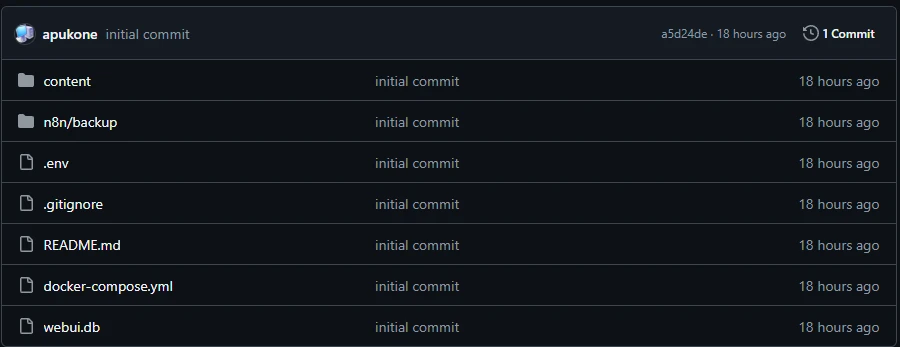
Let’s break down the setup
The meat of this setup is in the docker-compose.yml -file. By Docker’s own words:
Docker Compose is a tool for defining and running multi-container applications.
Because there are so many open-source projects these days, we can basically skip all the hard work of building all the biggest parts of the AI RAG system.
We just utilize different open-source technologies and wrap everything together. Different technologies are built to do different things and by combining them, we can build complete systems for our own use cases.
In this particular setup, we use the following technologies to build a local AI RAG setup that integrates with our local markdown files: n8n, Ollama, Qdrant, PostgreSQL, Open WebUI
n8n
Looking at the docker-compose.yml -file, we have a couple of different configurations for n8n:
First, here is our main service configuration:
x-n8n: &service-n8n
  image: n8nio/n8n:latest
  environment:
    - DB_TYPE=postgresdb
    - DB_POSTGRESDB_HOST=postgres
    - DB_POSTGRESDB_USER=${POSTGRES_NON_ROOT_PASSWORD}
    - DB_POSTGRESDB_PASSWORD=${POSTGRES_NON_ROOT_PASSWORD}
    - N8N_DIAGNOSTICS_ENABLED=false
    - N8N_PERSONALIZATION_ENABLED=false
    - N8N_ENCRYPTION_KEY=${N8N_ENCRYPTION_KEY}
    - N8N_USER_MANAGEMENT_JWT_SECRET
  links:
    - db
This is configured outside our main services-section so we can share it with more than one service.
If we look inside the services-section, there are two different containers for n8n; n8n and n8n-import:
n8n:
    <<: *service-n8n
    container_name: n8n
    restart: unless-stopped
    ports:
      - 5678:5678
    volumes:
      - n8n_storage:/home/node/.n8n
      - ./n8n/backup:/backup ## exposes the initialized data for the container
      - ./content:/content:rw ## attaches your content folder to n8n
    depends_on:
      db:
        condition: service_healthy
      n8n-import:
        condition: service_completed_successfully
and
n8n-import:
    <<: *service-n8n
    container_name: n8n-import
    entrypoint: /bin/sh
    command:
      - "-c"
      - "n8n import:credentials --input=/backup/credentials/credentials.json && n8n import:workflow --separate --input=/backup/workflows"
    volumes:
      - ./n8n/backup:/backup
    depends_on:
      db:
        condition: service_healthy
n8n container runs the main n8n instance while n8n-import simply runs a bash script inside the container and imports the necessary credentials and the workflow for our n8n setup.
I won’t go into too much detail into what n8n is and what it does, but it basically acts as our backend system for Open WebUI. It’s a no-code/low-code solutions for quickly integrate different apps and tools.
This is what our n8n workflow looks like:
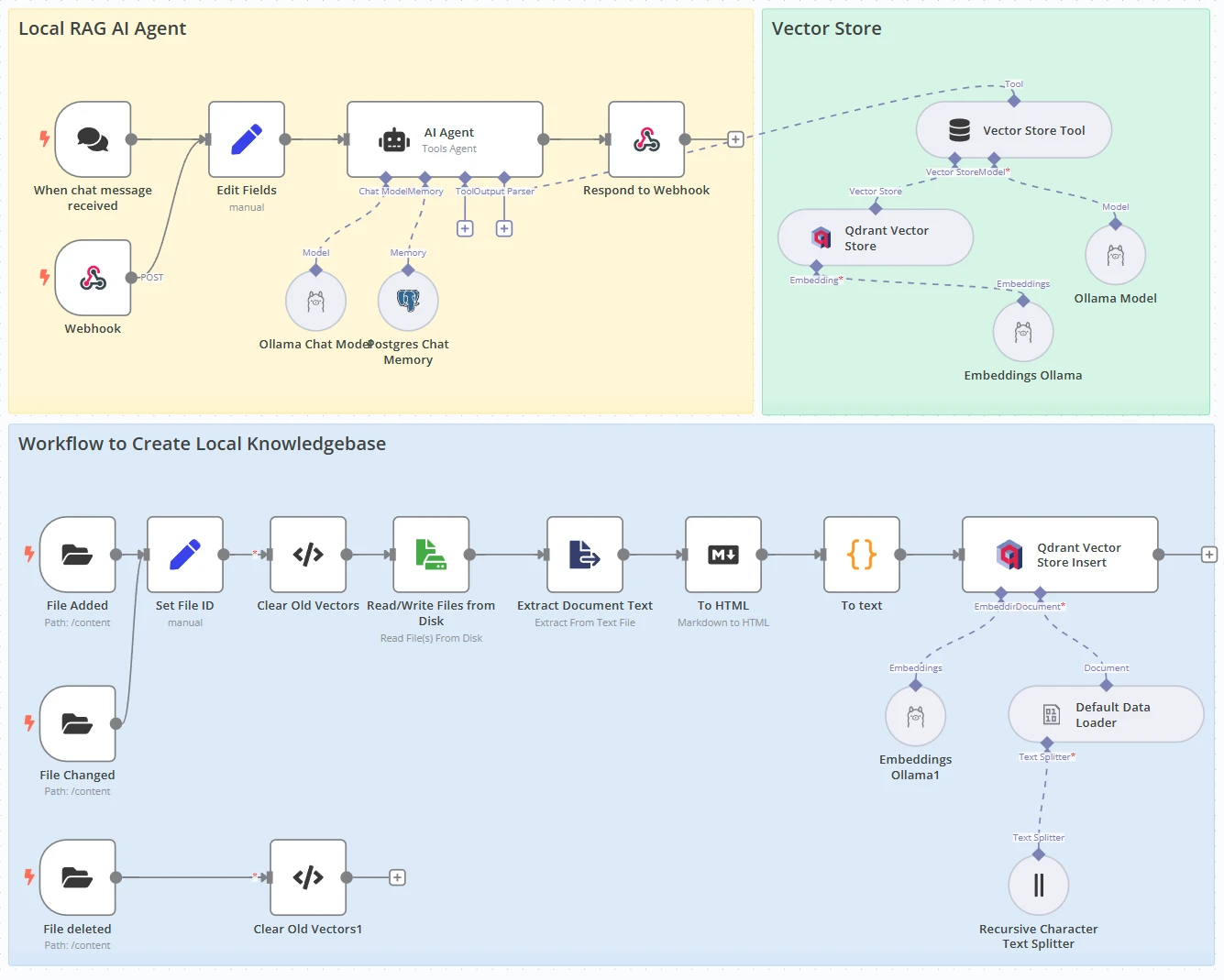
The lower section of the image above is a visual representation of the flow where we process the file changes that are happening inside our /content -folder.
There are three triggers; File added, File changed, File deleted. The first two are following the same process of extracting the contents of the file and adding that content to Qdrant vector store. File deleted simply clears the vector store from all the entries associated with the file that was deleted.
Ollama
A very important part of running a local AI setup, and in our case with RAG support, is Ollama. Ollama is an open-source project for running LLMs on your local machine.
Ollama integrates well with both Open WebUI and n8n. In our local AI RAG setup we mainly use Ollama through n8n as it is connected to our AI Agent node, as well as with Qdrant vector store nodes.
There is no UI or dashboard to use with Ollama and it is basically just a background process that simply connects n8n to our LLMs.
If we take a look closer into our docker-compose.yml -file, we have a similar configuration setup as with n8n.
x-ollama: &service-ollama
  image: ollama/ollama:latest
  volumes:
    - ollama_storage:/root/.ollama
At the top, we define our main service configurations for Ollama that can be shared with two services.
ollama:
    <<: *service-ollama
    restart: unless-stopped
    container_name: ollama
    ports:
      - 11434:11434
and
ollama-pull:
    <<: *service-ollama
    container_name: ollama-pull
    entrypoint: /bin/sh
    command:
      - "-c"
      - "sleep 3; OLLAMA_HOST=ollama:11434 ollama pull qwen2.5:7b; OLLAMA_HOST=ollama:11434 ollama pull nomic-embed-text"
    depends_on:
      - ollama
Container named ollama runs the main instance of Ollama while ollama-pull initializes our main ollama instance with the LLM models of our choice. In our local AI RAG setup, we use qwen2.5:7b as the main brain of our AI and nomic-embed-text for specialized embedding skills to fill Qdrant vector store and search.
Qdrant
Qdrant acts as a vector store to the embeddings in our local AI RAG setup.
Here is what an example record looks like from the Qdrant dashboard inside our content-collection:
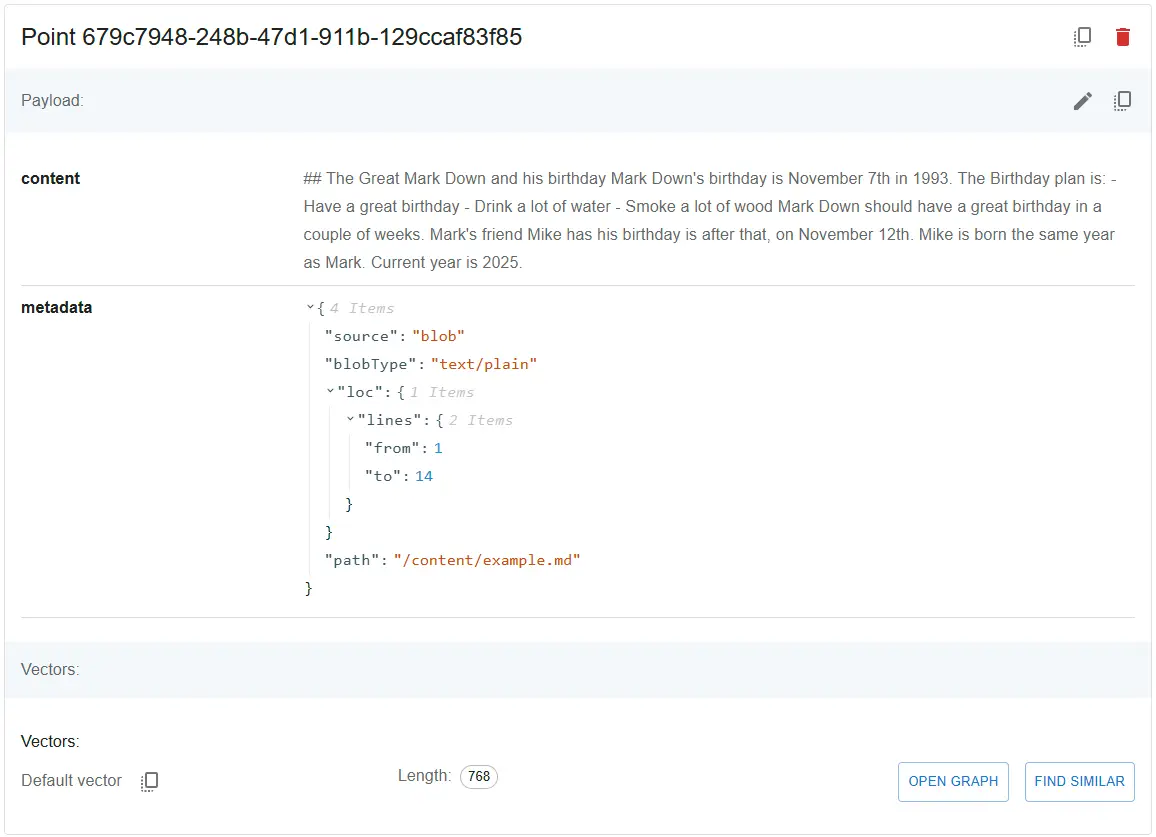
Inside our docker-compose.yml-file we set up Qdrant with the following configuration:
qdrant:
    image: qdrant/qdrant
    container_name: qdrant
    restart: unless-stopped
    ports:
      - 6333:6333
    volumes:
      - qdrant_storage:/qdrant/storage
PostgreSQL
PostgreSQL acts as the database for our local AI RAG setup. For our use case, it doesn’t have too much to do as it is only used for storing chat context for n8n workflow. Still important, but nothing crazy going on with the database.
Here is our database configuration inside the docker-compose.yml-file:
db:
    container_name: postgres
    image: timescale/timescaledb-ha:pg17
    environment:
      - POSTGRES_PASSWORD=${POSTGRES_NON_ROOT_PASSWORD}
      - POSTGRES_USER=${POSTGRES_NON_ROOT_USER}
      - POSTGRES_DB=${POSTGRES_DB}
    ports:
      - "5432:5432"
    command: [ "-c", "ai.ollama_host=ollama:11434" ]
    healthcheck:
      test: ['CMD-SHELL', 'pg_isready -h localhost -U ${POSTGRES_USER} -d ${POSTGRES_DB}']
      interval: 5s
      timeout: 5s
      retries: 10
The database is actually TimescaleDB which is basically a PostgreSQL database but with AI capabilities. While these database AI capabilities are not used in our local AI RAG setup, it is good to have them ready for future setups.
Open WebUI
Open WebUI is the main interface we are going to be using with our local AI RAG setup to interact with our documents inside the /content -folder. Open WebUI connects to the n8n workflow with it’s internal functions -feature.
In our setup, we have a slightly modified version of a specific community function to integrate Open WebUI with n8n workflow.
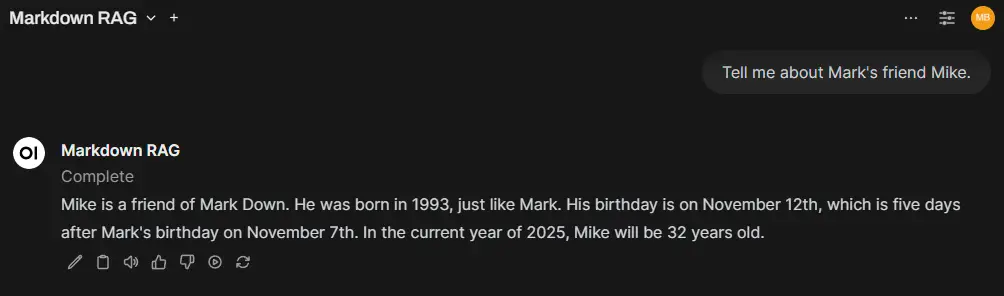
Above we can see how Open WebUI is able to answer our question about specific information that is only available in our /content/example.md-file.
Let’s quickly go through the docker-compose.yml-file configrutaion for Open WebUI.
open-webui:
    image: ghcr.io/open-webui/open-webui:main
    container_name: open-webui
    volumes:
      - open-webui:/app/backend/data
      - ./webui.db:/app/backend/data/webui.db
    ports:
      - 3001:8080
    environment:
      - 'OLLAMA_BASE_URL=http://localhost:11434'
    extra_hosts:
      - host.docker.internal:host-gateway
    restart: always
In this configuration, there is not much magic going on. One notable thing though is the webui.db -file which we have included in our setup. This is simply for setting up Open WebUI to include the necessary function from the get-go as well as some minor tweaks in the UI settings.
How to use the local AI RAG system
Everything should be set up to simply run a docker compose up from the project folder.
Here are the same steps and notes that have been included in the project’s readme file:
Installation
- Install Docker
- Clone repo
git clone https://github.com/apukone/self-hosted-ai-rag.git - Open the project folder
- Run:
docker compose upand wait for it to finish (could take a few minutes)
Getting started
- Activate the n8n workflow by first logging in to n8n dashboard at http://localhost:5678/
- Create account / Log in (local account)
- Toggle
Markdown RAG-switch to activate the workflow
- Use your favorite Markdown-editor, like VSCode and navigate to
/content-folder and start adding markdown-notes there.- Every add, change, and delete event in the content folder will update the Qdrant vector database through n8n workflow.
- You can start by simply saving the
example.md-file once, which will add it to the Qdrant vector store
- Use the Open WebUI at http://localhost:3001/ - to talk to your files.
- Login with: username:
test@test.fipassword:test - Open WebUI database should be initialized with ready-to-go setup
- Ask and example question in Open WebUI, like:
- When is Mark Down’s birthday?
- What is the plan for Mark Down’s birthday?
- Login with: username:
Other
- By default, this setup includes
Qqwen2.5:7b-model for AI, which might require some good performance from your hardware. This model was tested optimal with 32GB DDR5 7200MHz, 13700k, 7900XT. - Open WebUI seems to sometimes timeout when webhook requests take a long time to process. Use F5 to update the chat.
Final thoughts and conslusion
This is a very simple and basic setup for running a local AI RAG system on your own hardware. This setup demonstrates how you can integrate AI and RAG system to your personal documents, such as markdown files.
As someone who likes to write things down in markdown-format, it’s quite nice to see an AI being able to interpret my notes and to draw conclusions of what I’ve writen.